1. Introduction

1.1 Why Choose Spectra – The Ultimate Shopify Theme for Your Store

Spectra is not just another Shopify theme—it’s a comprehensive, feature-packed solution built to help you succeed in the competitive world of e-commerce. With its modern design, high performance, and ease of use, Spectra offers everything a Shopify store owner could need to create a professional, visually stunning online store.

Key Benefits:

  • Versatility: Ideal for a wide range of businesses, from small boutique stores to large-scale e-commerce enterprises.
  • Performance: Optimized for speed, Spectra ensures a smooth, fast-loading experience for your customers, reducing bounce rates and improving conversions.
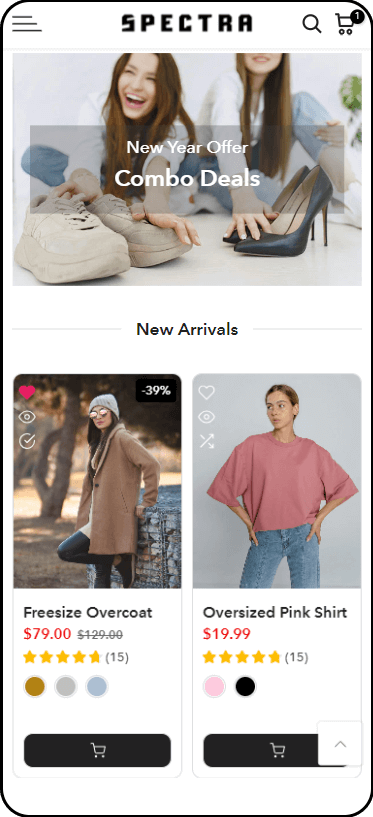
  • Mobile-First Design: Fully responsive and designed to look amazing on any device, providing a seamless shopping experience.
  • Customization: Whether you’re a novice or a seasoned Shopify user, Spectra allows for easy customization to reflect your brand’s personality.

Spectra is your partner in building a high-converting, engaging, and visually appealing store that your customers will love.


2. Getting Started

2.1 How to Install and Set Up the Spectra Shopify Theme?

Setting up your Spectra theme is a straightforward process. Follow the steps below to get started:

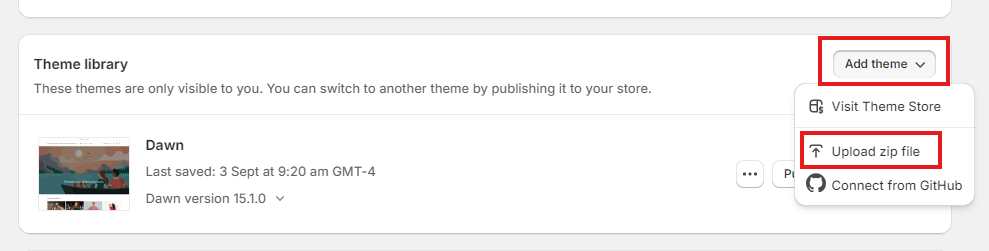
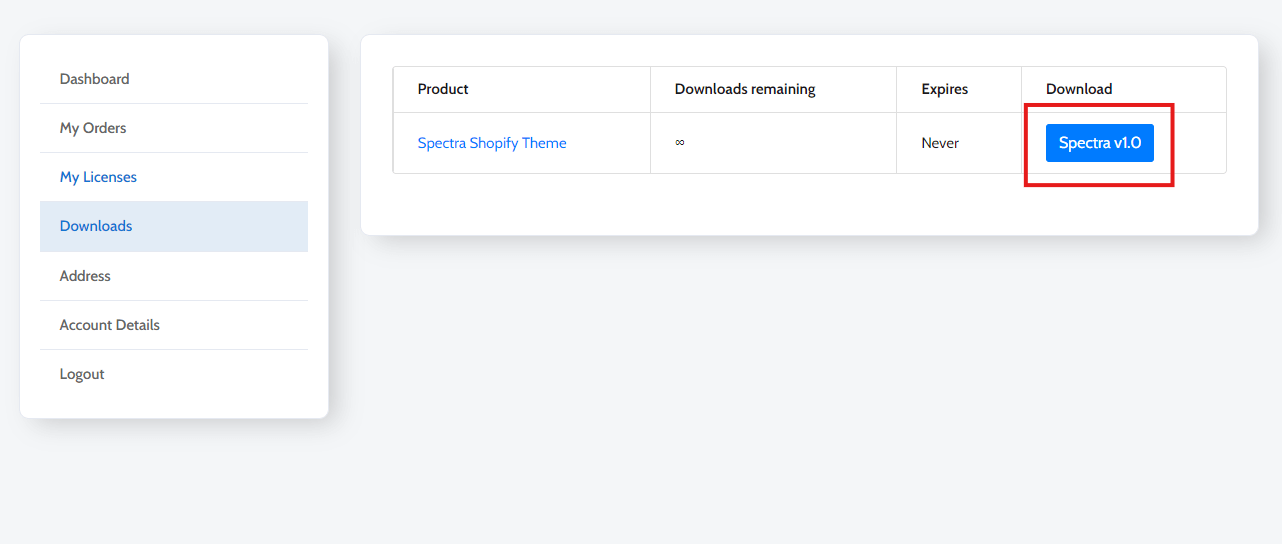
1. Download the Spectra Theme: Once you’ve purchased the Spectra theme, download the .zip file from the purchase confirmation email or from your account on our website.

2. Log into Your Shopify Admin: In your Shopify dashboard, navigate to Online Store > Themes.

3. Upload the Theme:

  • Click the Upload Theme button.
  • Choose the Spectra .zip file from your computer and click Upload.

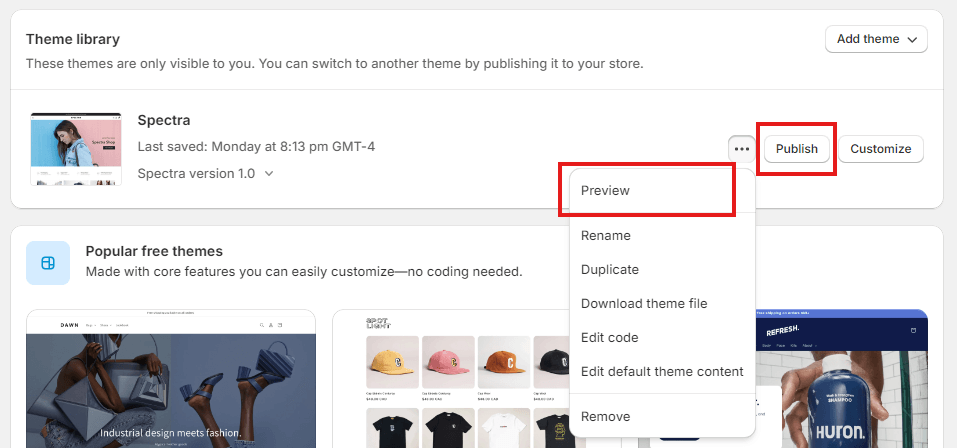
4. Publish the Theme:

Once the theme has been uploaded, click Actions > Publish to make it live on your store.

Preview the theme before publishing to ensure everything looks right.

5. License Activation:

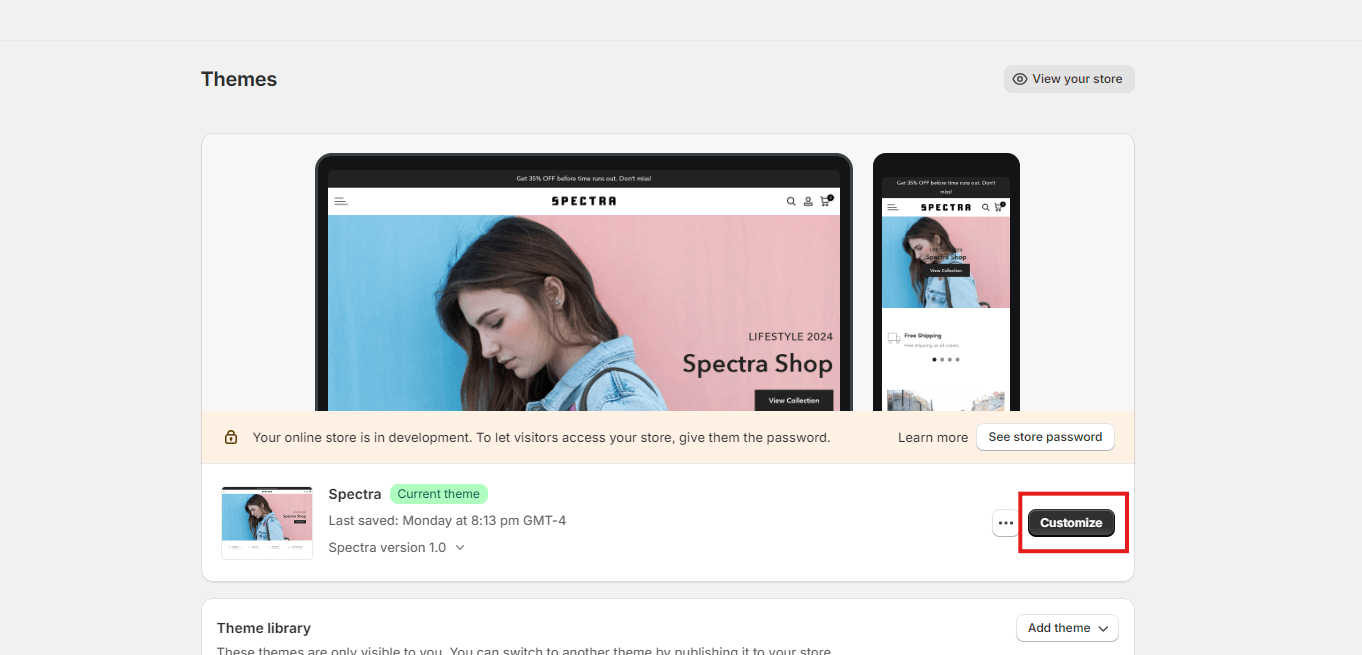
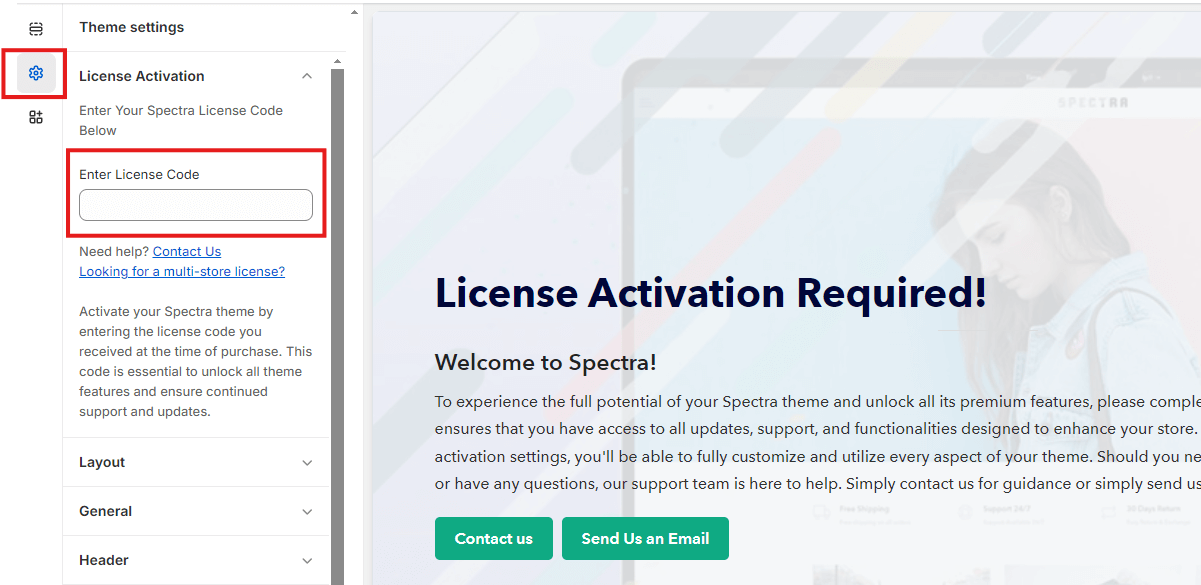
  • After installation, click to customize the theme and navigate to Theme Settings in the Shopify customizer.

  • Click the Licence Activation Tab at left side of Theme Customizer.

  • Enter the license key provided during purchase to activate the theme.

  • Congratulations! Your Spectra theme is now active and ready for customization.


2.2 Requirements for Using the Spectra Theme

Before you install the Spectra theme, ensure your store meets these requirements:

  • Shopify Plan: Spectra works on all Shopify plans.
  • Browser Compatibility: We recommend using the latest versions of Chrome, Firefox, or Safari for the best experience when customizing your theme.


3. How to Set Up Homepage?

3.1 Built-In Homepage with Spectra Theme

One of the standout features of the Spectra Shopify Theme is the ready-to-use, built-in homepage. This feature allows you to quickly set up your store without needing to design a homepage from scratch. Once the Spectra theme is activated, the pre-designed homepage is ready to go, complete with demo content to help you visualize your layout.

How It Works

  1. Instant Activation: After activating the Spectra theme, the homepage is automatically set up with pre-configured sections.
  2. Pre-loaded Demo Content: The theme comes with demo images, text, and placeholders, making it easy for you to see the design in action.
  3. Customizable Layout: The built-in homepage is fully customizable using the Shopify theme customizer. You can adjust the layout, sections, and content as needed.

How to Customize the Built-In Homepage

To make the homepage your own, all you need to do is replace the demo content with your store’s branding.

1. Access the Shopify Theme Customizer:

    • Navigate to Online Store > Themes > Customize from your Shopify admin panel.

2. Replace Demo Images:

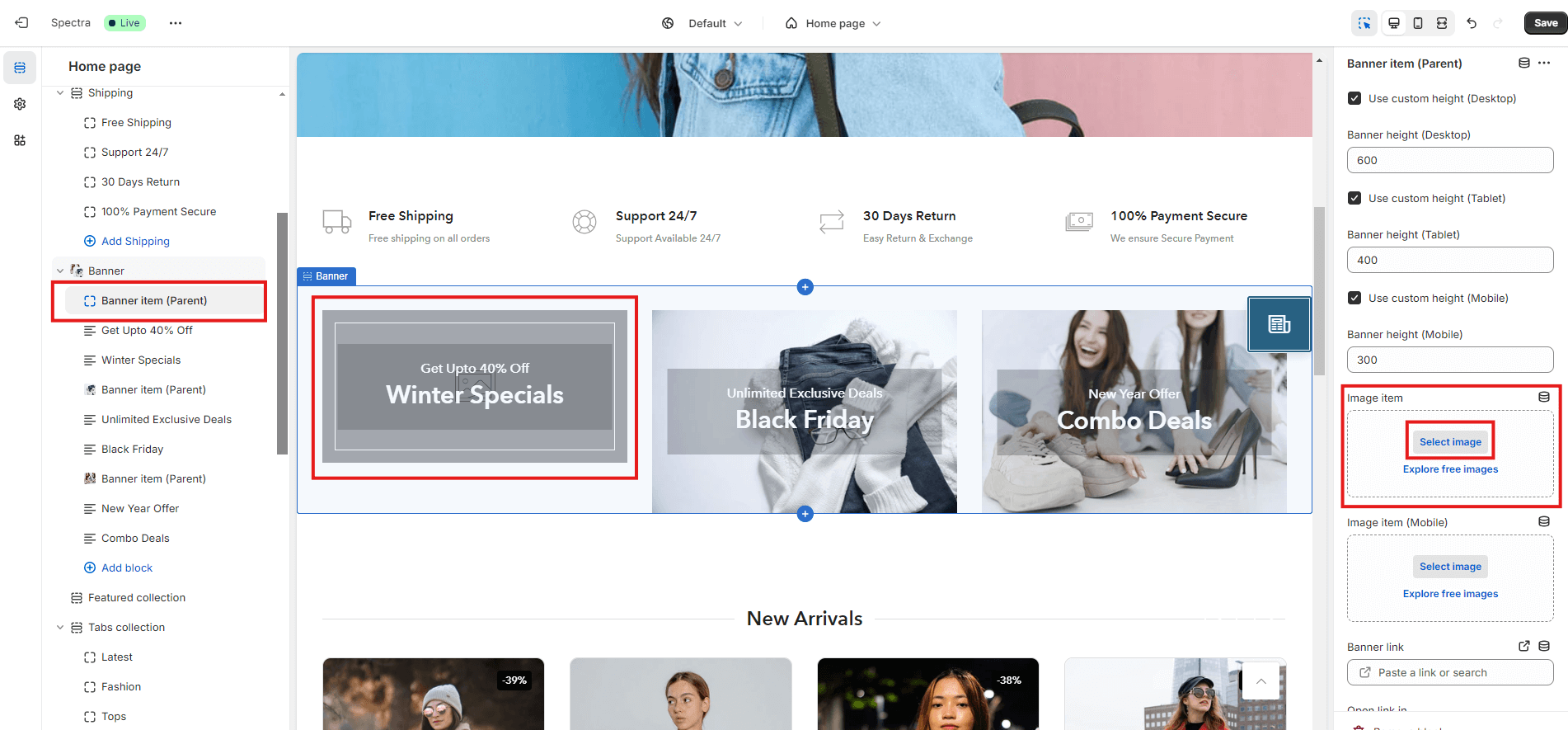
    • In the customizer, go to each section with demo images (e.g., hero slider, featured products, etc.).
    • Click on the demo image and upload your own product or brand images.

3. Update Text:

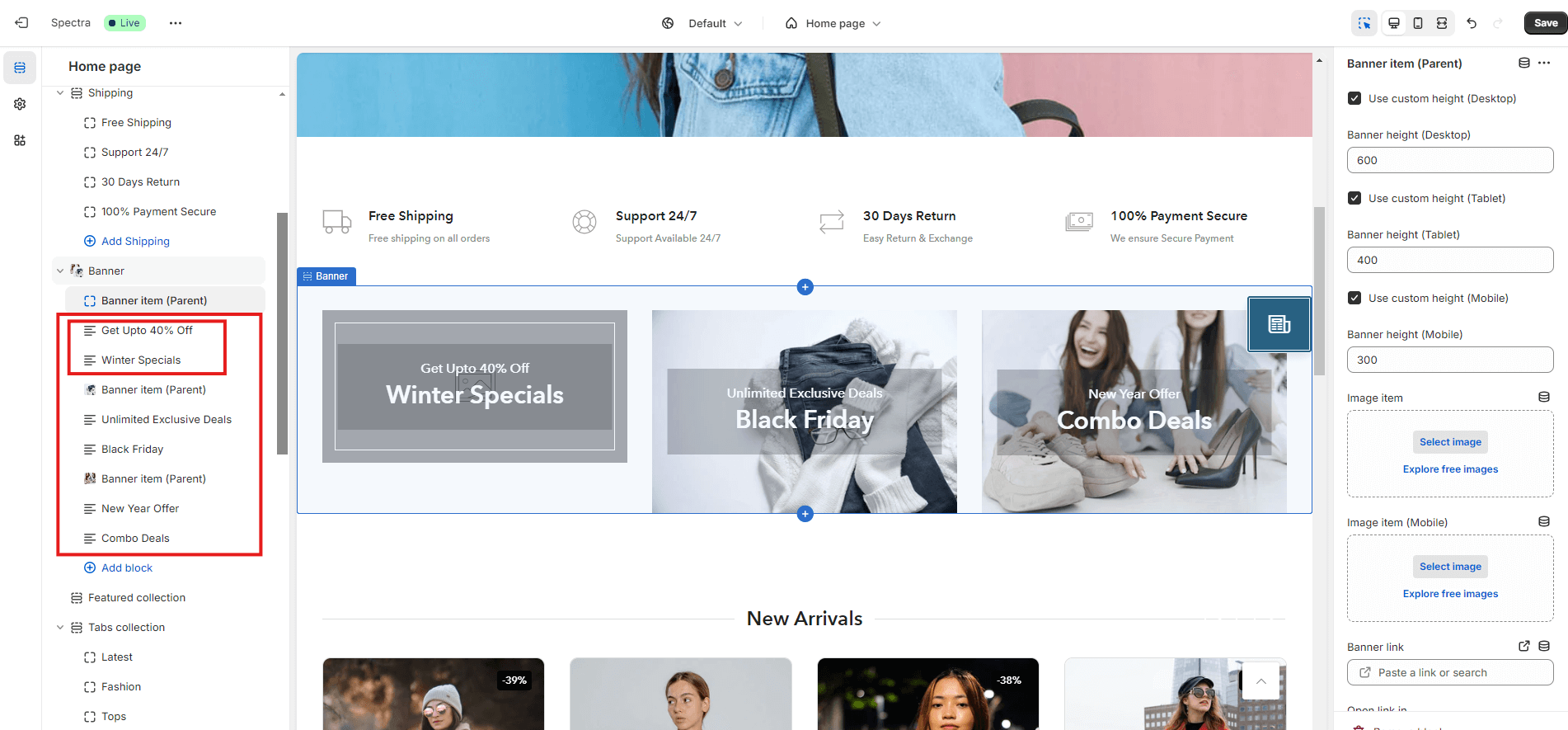
    • Replace placeholder text with your own messaging. Customize headlines, subheadings, and CTA buttons to reflect your store’s offers.

4. Adjust Layout (Optional):

    • The theme’s drag-and-drop interface allows you to rearrange sections or remove those you don’t need.
    • Add new sections such as product grids, testimonials, or promotional banners if desired.


3.2 Benefits of Using the Built-In Homepage

  • Time-Saving: No need to create a homepage from scratch—Spectra’s built-in homepage is designed to be aesthetically appealing and functional right from activation.
  • High-Converting Layout: The default layout is optimized for user experience, with key sections like hero banners, featured products, and testimonials that drive conversions.
  • Easy Customization: You don’t need coding skills to modify the built-in homepage. Just upload your images, edit the text, and your store is good to go!


3.3 Best Practices for Replacing Demo Content

  • Use High-Quality Images: Ensure that your product or promotional images are crisp and professional. Poor-quality images can negatively impact the look and feel of your store.
  • Keep It On-Brand: Make sure that the colors, fonts, and messaging align with your brand’s identity.
  • Test on Mobile: Since the Spectra theme is mobile-responsive, always check how your changes appear on mobile devices to ensure a seamless shopping experience.


4. Theme Customization

4.1 Mastering the Shopify Theme Customizer with Spectra

The Shopify Theme Customizer allows you to tweak your theme’s settings to match your brand’s style. Spectra’s customization options are intuitive and easy to use.

Here’s how to customize your Spectra theme:

  1. Navigating to the Customizer:
    • From your Shopify admin, go to Online Store > Themes > Customize.
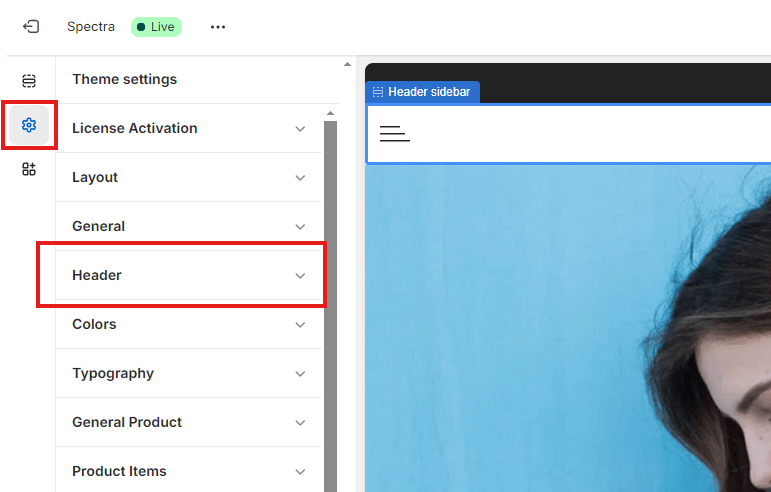
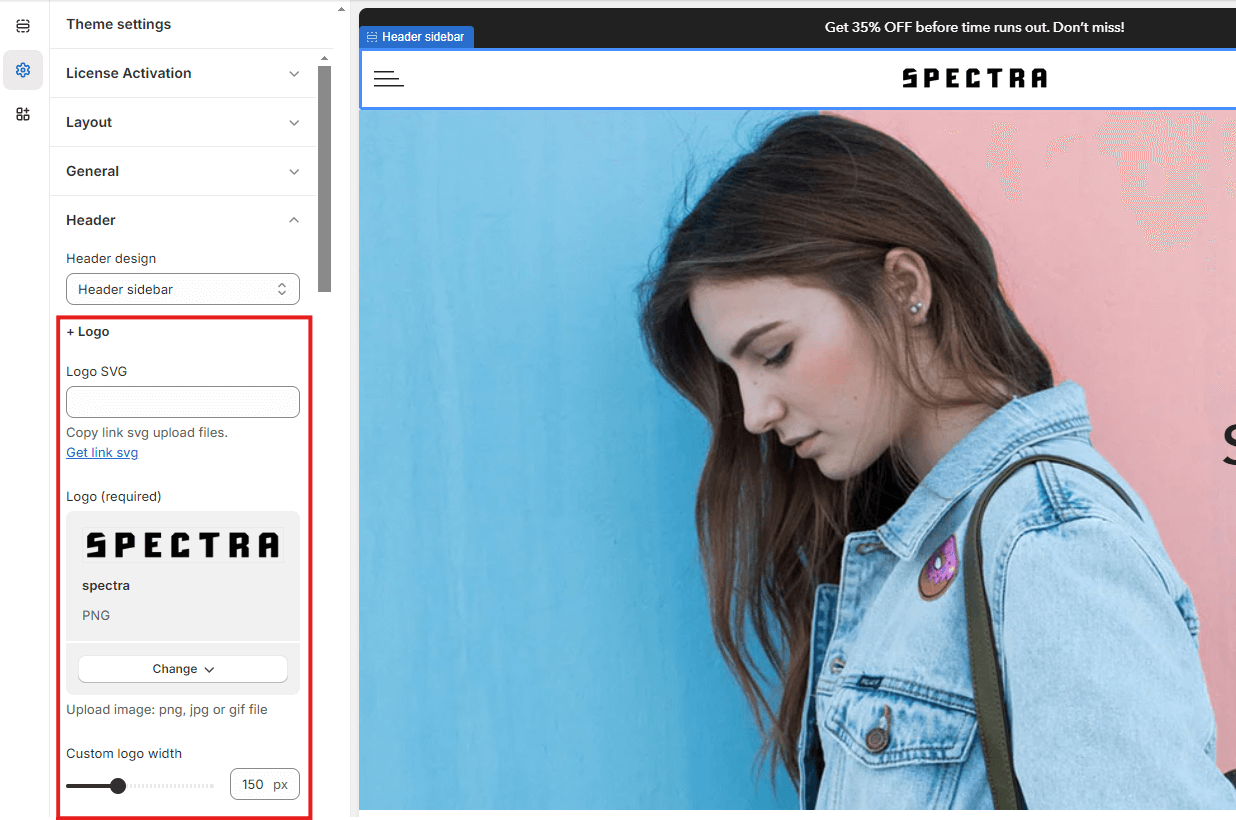
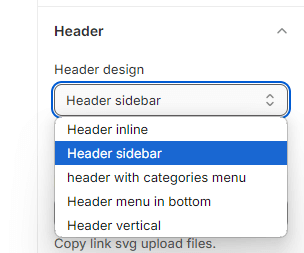
  2. Customizing the Header:
    • Use the customizer panel on the left to edit your logo, navigation, and header background color.
    • Add promotional text or a banner to announce sales or discounts.
  3. Homepage Sections:
    • Spectra offers drag-and-drop sections to create a flexible homepage.
    • Customize the slider, featured products, testimonials, and more.
  4. Footer Settings:
    • Customize your footer with social media links, a newsletter signup form, and additional links.

Save your changes frequently to preview how your site will look live.


5. Customizing Products and Collections

The Spectra Shopify Theme is designed to provide an exceptional product page experience for users. With an emphasis on ease of use and accessibility, the Spectra theme offers a modern, app-like product page that enhances user interaction, reduces friction, and boosts conversion rates. This product page layout is inspired by top e-commerce marketplaces, ensuring that all important elements are immediately visible to your customers without requiring endless scrolling.


5.1 Customizing Product and Collection Pages with Spectra

Product pages are the heart of your store, and Spectra ensures they are optimized for success. With built-in features, Spectra allows for significant customization while keeping things simple, ensuring your products are presented in the best possible light.

Product Images: Spectra comes with a built-in feature that allows you to upload high-quality images with a zoom function, giving customers a closer look at product details effortlessly.

Badges: You can add sale, new, or exclusive badges to products to highlight special offers or newly launched products.

Tabs: The theme automatically organizes information with pre-built tabs for product details, additional information, and customer reviews, keeping your product pages clean and easy to navigate. If you want, you can also manually add more yourself.

Product Filtering: Spectra includes advanced filtering options, such as size, color, and price on collection pages. These built-in filters help customers find exactly what they’re looking for, ensuring a seamless shopping experience.


5.2 Key Features of Spectra’s Product Page

  1. App-Like Layout:
    Spectra’s product page mirrors the design of popular marketplace apps, making it easy for users to find everything they need at a glance. All the essential product details and actions, such as images, title, price, color/size variations, quantity selector, and “Add to Cart” button, are positioned within reach, creating a seamless shopping experience.
  2. Product Images and Gallery:
    The product image gallery is placed prominently at the top of the page, featuring a high-quality, zoomable image. Additional product images are displayed as thumbnails, allowing users to swipe through and explore different angles or variations of the product with ease. This helps customers make informed decisions, increasing trust and reducing returns.
  3. Quick Variant Selection:
    Variants such as colors, sizes, or materials are conveniently positioned near the product image. Customers can easily switch between different variants without the need to scroll up and down the page. Each variant change dynamically updates the product image to reflect the customer’s selection, offering a more interactive and immersive shopping experience.
  4. Quantity Selector:
    The quantity selector is located right next to the product variants, making it simple for users to increase or decrease the quantity of items they wish to purchase. This ease of access can drive larger purchases as customers don’t need to leave the main product details area.
  5. “Add to Cart” & “Buy Now” Buttons:
    These essential buttons are placed front and center to encourage immediate action. The “Add to Cart” button is large and inviting, while the “Buy Now” button is an option for those looking to purchase the product directly without adding it to the cart. This dual approach caters to different buying behaviors, reducing friction in the checkout process.
  6. Product Reviews and Ratings:
    Social proof is crucial to boosting sales, and Spectra’s product pages feature a built-in rating system near the product title. Customers can see how well a product is rated, encouraging trust in the product and your store. Below the fold, you’ll find customer reviews, which provide detailed feedback and further promote trust.
  7. Sticky Add to Cart on Scroll:
    As customers explore more detailed product descriptions, specifications, or customer reviews, Spectra ensures that the “Add to Cart” button remains visible through a sticky header. This design feature keeps the primary CTA within reach, reducing the effort required to add a product to the cart, even if customers are scrolling through long product pages.
  8. Dynamic Pricing and Discounts:
    Spectra’s product page supports dynamic pricing, which automatically reflects any discounts or sale prices applied. This ensures that customers see the most current price without having to navigate elsewhere. Discount badges and countdown timers can also be integrated to create urgency and drive sales.
  9. Integrated Upselling and Cross-Selling:
    Right below the product information, you can display related products or frequently bought together items, encouraging customers to add more to their cart. This built-in upselling feature is crucial for boosting your average order value.
  10. Customizable Sections:
    You have the flexibility to add more sections such as product specifications, detailed descriptions, size guides, or shipping information without disrupting the page’s flow. These sections are expandable, giving customers more in-depth information while keeping the layout neat and concise.
  11. Mobile-Optimized Design:
    Spectra’s product page is built to provide a smooth and intuitive experience on mobile devices. The app-like layout shines here as it condenses all product information into a single screen, making it easy for mobile shoppers to make decisions without unnecessary scrolling.
 

6. Performance Optimization

6.1 How to Optimize the Spectra Theme for Speed and Performance?

A fast store leads to higher conversions, and Spectra is designed with speed in mind. While many performance features are already built into the theme, here are some additional tips to help you make the most of Spectra’s performance optimization.

1. Image Optimization

While Spectra is optimized for fast loading, you can enhance performance further by using compressed images. Ensure images are optimized without compromising quality.

2. Built-in Lazy Loading

Spectra includes lazy loading by default. This means images and media elements only load as users scroll down the page, reducing the initial page load time and providing a faster, more fluid experience.

3. Minify CSS and JavaScript (Pre-Built)

Spectra comes with minified CSS and JavaScript files already built-in. These optimizations reduce the size of your CSS and JS files, improving the load times by removing unnecessary spaces and code, ensuring a faster store.

4. Remove Unnecessary Apps

While Spectra is designed for performance, adding too many third-party apps can still impact your store’s speed. Regularly audit your apps and remove those you’re no longer using to keep your store running smoothly.


6.2 SEO Best Practices with the Spectra Shopify Theme

Search Engine Optimization (SEO) is crucial for your store’s visibility. Spectra is built with SEO in mind, but here’s how you can maximize it:

1. Meta Tags:

Ensure each product and collection has unique and keyword-rich meta titles and descriptions.

2. Alt Text:

Add descriptive alt text to all images. This not only helps with SEO but also makes your site accessible to visually impaired users.

3. Sitemap:

Use Shopify’s built-in sitemap.xml to submit your store to search engines.

4. Page Speed:

Faster loading times improve your SEO. Keep your store optimized for speed by using compressed images and clean code.


7. Advanced Customization

7.1 How to Add Custom CSS and JavaScript to Your Spectra Theme?

For users who want to go beyond the default settings, you can easily add custom CSS and JavaScript to further personalize your store.

  1. Adding Custom CSS:
    • Navigate to the Shopify admin, then Online Store > Themes > Actions > Edit Code.
    • Open the theme.scss.liquid file to add your custom CSS.
  2. Adding JavaScript:
    • For custom functionality like pop-ups or sliders, you can add custom JavaScript by editing the theme.liquid file.

Make sure to test all changes on a staging environment to avoid affecting the live store.

7.2 Integrating Third-Party Shopify Apps into Spectra

Spectra offers full compatibility with numerous Shopify apps, and also provides several powerful built-in features to enhance your store’s functionality. Here’s how to integrate popular third-party apps and make the most of Spectra’s built-in tools.

1. Install the App

To integrate third-party apps:

  • Visit the Shopify App Store.
  • Search for the app you want (e.g., Oberlo for dropshipping or Klaviyo for email marketing).
  • Click Add App and follow the installation instructions.

2. Configure the App

After installation:

  • Follow the configuration steps provided by the app.
  • Most apps will automatically integrate with Spectra, though some may require manual adjustments.

3. Popular Apps and Built-in Features

While third-party apps are easy to integrate, Spectra comes pre-loaded with several key features, reducing the need for additional installations:

Built-in Features:
  • Ryviu.io: Pre-integrated for product reviews, so no need for a separate review app.
  • Autocomplete Search: Spectra’s built-in autocomplete search enhances the search experience for customers by suggesting products as they type.
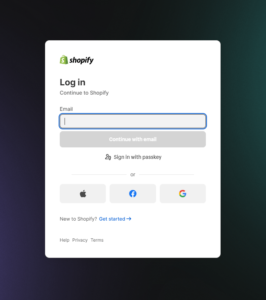
  • Login/Register Sidebar: A stylish sidebar for user login and registration, built directly into the theme.
  • Wishlist: Add a wishlist functionality without any extra apps.
  • Sidebar Shopping Cart: A built-in, easy-to-access shopping cart for seamless customer experience.
  • Quick View: Allows customers to preview products quickly without leaving the current page.
  • Product Compare: An integrated feature for comparing products side by side.
  • Instagram Product Pins: Highlight your Instagram posts with pinned products directly on your store.
  • Product Listing Image Effects on Hover: Eye-catching hover effects for product images to increase engagement.

4. Reduce App Overload

By leveraging Spectra’s built-in features, you can minimize reliance on third-party apps, which helps improve site performance and reduces page load times.


8. Multi-Language & Multi-Currency Setup

8.1 Setting Up a Multi-Language Store with Spectra

If you’re running a global business, offering your store in multiple languages can be a game-changer.

  1. Enable Multi-Language:
    • Use Shopify’s native multi-language features or install an app like Langify to translate your store.
  2. Translate Key Elements:
    • Ensure that your homepage, product pages, checkout process, and email notifications are fully translated.


8.2 How to Enable Multi-Currency with the Spectra Theme

Offering multiple currencies helps you reach a broader audience:

  1. Use Shopify Payments:
    • Enable multi-currency via Shopify Payments to automatically convert based on customer location.
  2. Currency Converter Apps:
    • For additional control, use a third-party currency converter app to offer multiple currencies without Shopify Payments.


9. FAQs

9.1 Troubleshooting Common Spectra Theme Issues

Here are some common issues users might face and their solutions:

  1. Theme Not Displaying Correctly:
    • Ensure that all required sections are set up in the theme customizer.
  2. Images Not Loading:
    • Check if the images are uploaded in the correct format and size. Use a tool like TinyPNG to compress large images.
  3. CSS/JavaScript Issues:
    • If custom CSS or JavaScript isn’t working, ensure that it is properly linked in the header or footer.


9.2 How to Contact Support for Spectra Theme?

If you encounter any issues, our support team is here to help. You can reach us through:

  1. Email Support: Send us an email at [email protected] for help with setup, customization, or troubleshooting.
  2. Live Chat: Use our live chat feature on the website for quick responses during business hours.
  3. Documentation: Don’t forget to check our full documentation for answers to most common issues.


10. Theme Updates

10.1 How to Safely Update Your Spectra Theme

Keeping your theme up to date is essential for security and performance. Here’s how to update Spectra:

  1. Backup Your Theme:
    • Before updating, always create a backup of your current theme by duplicating it in the Themes section.
  2. Install the Latest Version:
    • Download the latest version from your account and upload it as a new theme.
  3. Migrate Customizations:
    • If you’ve added custom CSS or JS, you’ll need to migrate those changes manually by copying the code from the old version to the new one.


11. License & Support

11.1 How to Manage Your Spectra Theme License

Your Spectra license allows you to activate the theme on your store. Here’s how to manage it:

  1. Activate License:
    • Enter your license key in the theme settings to activate your theme.
  2. Renew License:
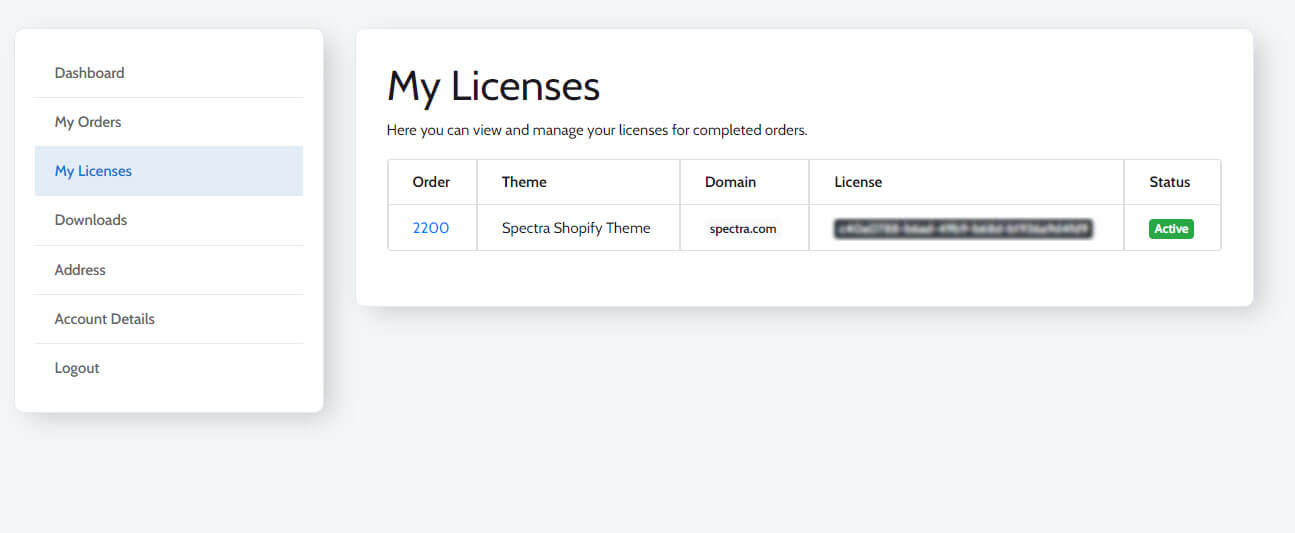
    • To renew your license, log in to your account on our website, go to the My Licenses section, and follow the renewal steps.
  3. Multi-Store License:


11.2 How to Get Help with Your Spectra Theme

We are committed to ensuring you have the best experience with the Spectra theme. Whether you need technical support or general advice, here are the ways you can get assistance:

1. Support Portal

For direct help, visit our Support Portal. Here, you can:

  • Browse FAQs: Find answers to common questions and issues.
  • Submit a Ticket: If you need personalized assistance, submit a ticket through our portal, and our support team will get back to you as soon as possible.

2. Community Forums

Engage with other Spectra users and share your experiences in our Community Forums. The forums are a great place to:

  • Share Tips: Learn and share helpful tips and tricks with other users.
  • Troubleshoot Issues: Get advice and solutions for any issues you may be encountering.
  • Ask Questions: Receive guidance from experienced store owners and other community members.

If you can’t find the answers you need in the forums or FAQs, feel free to ask us a question directly, and we’ll be happy to assist you.


12. Conclusion

12.1 Best Practices for Using the Spectra Shopify Theme

To make the most out of the Spectra theme and ensure your Shopify store performs at its best, follow these best practices:

1. Use High-Quality Images

High-quality images are essential for creating a strong first impression and effectively showcasing your products. Ensure your images are:

  • Clear and Crisp: Use high-resolution, professional images.
  • Consistent: Maintain a uniform style across all product images to create a cohesive look.

2. Optimize for Mobile

Spectra is designed to be mobile-optimized, but it’s important to ensure all aspects of your store function seamlessly on mobile devices:

  • Test Across Devices: Regularly check your store’s appearance and functionality on various mobile devices to ensure a smooth user experience.
  • Mobile-Specific Features: Verify that mobile features, such as menus and buttons, are user-friendly and easily accessible.

3. Speed Matters

A fast-loading store is crucial for retaining customers and improving conversion rates. Use Spectra’s built-in performance optimization tools and additional strategies:

  • Monitor Performance: Keep an eye on your store’s speed with tools like Google PageSpeed Insights.
  • Optimize Images and Files: Ensure your images are optimized and remove any unnecessary files to enhance loading times.

4. Keep It Simple

Simplicity can greatly enhance user experience. Avoid over-complicating your store’s design:

  • Clean Layout: Stick to a simple, intuitive layout that makes it easy for visitors to navigate.
  • Effective Use of Space: Use white space effectively to reduce clutter and improve readability.

By adhering to these best practices, you can ensure that the Spectra theme is utilized to its full potential, offering an excellent user experience and contributing to your store’s success.